
Tabela de conteúdos (Índice)
📶 Guest Wi-Fi Portal (Captive Portal) #
The Guest Wi-Fi Portal turns any MikroTik into a branded captive portal: guests connect to your Wi-Fi, fill in a short sign-up form on a page with your logo and colors and are released to the internet. You see who connected, when and how much they used – all from the cockpit, with no hotspot files to edit by hand.
⚙️ How it works #
- You design a portal: branding, texts, sign-up form, access rules and allowed sites.
- You apply the portal to a router and choose the interface (port, bridge or Wi-Fi network) where guests connect.
- The platform configures the MikroTik hotspot automatically (network, DHCP, hotspot server, user profile, login page and walled garden) and the router confirms when it is done.
- A guest connects, signs up once and is released. Returning guests are recognized by the device and skip the form.
- You follow everything in WiFi → Guest Wi-Fi Portal (the dashboard is also in the Dashboard menu): guests and who is connected now.
📊 Dashboard #
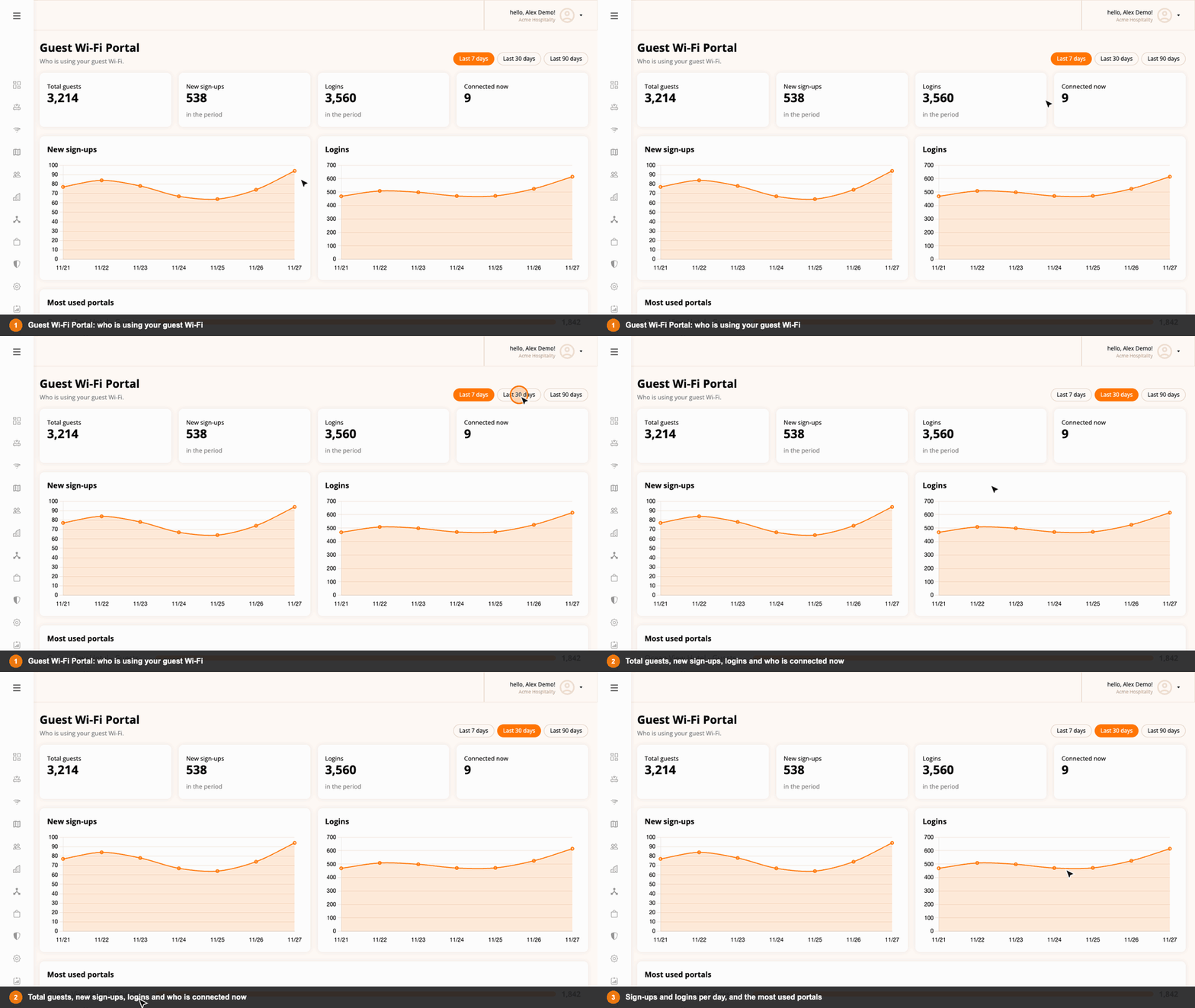
The dashboard shows who is using your guest Wi-Fi in the last 7, 30 or 90 days:
| Card / chart | What it shows |
|---|---|
| Total guests | Guests who signed up through your portals. |
| New sign-ups | New guests in the period, with a daily chart. |
| Logins | Every login in the period, including returning guests, with a daily chart. |
| Connected now | Guests online right now. Click to open the Connected now tab. |
| Most used portals | Ranking of portals by logins. |
🗂️ Tabs #
| Tab | Use it to |
|---|---|
| Portals | Create and edit portals. See Create a portal. |
| Routers | Apply a portal to a router and follow the status. See Apply to a router. |
| Guests | Search, block, export and delete guest data. See Guests & sessions. |
| Connected now | See guests online and disconnect them. |
🏢 The portal works per company. With the global company filter on, only the main selected company is shown. Only users with a profile allowed to make changes can create, edit or apply portals; the others can view.
🧩 If you encounter any issues, please contact support and include relevant screenshots to help troubleshoot the problem effectively.


