
Tabela de conteúdos (Índice)
📍 Adopt Access Points #
Every MikroTik AP must already be a device in the platform (see Add a MikroTik to SD-WAN). Then adopt it in one of two modes:
| Mode | How it works |
|---|---|
| CAPsMAN | The AP becomes a CAP and receives the networks from the controller. Recommended for sites with several APs. |
| Standalone | The AP keeps its own configuration, managed directly by the platform: up to 4 SSIDs, WPA2-PSK or open. |
➕ Adopt an AP #
- Go to WiFi → Wi-Fi and CAPsMAN → Access points and click Adopt AP.
- Select the device.
- Choose the Management mode.
- CAPsMAN: select the controller and enter the CAPsMAN IP reachable by AP (e.g.
192.168.88.1).
Standalone: add the SSIDs, radios and WPA2 password (8 to 63 characters). - Confirm. The Wi-Fi of that AP may be interrupted for a moment while it is configured.
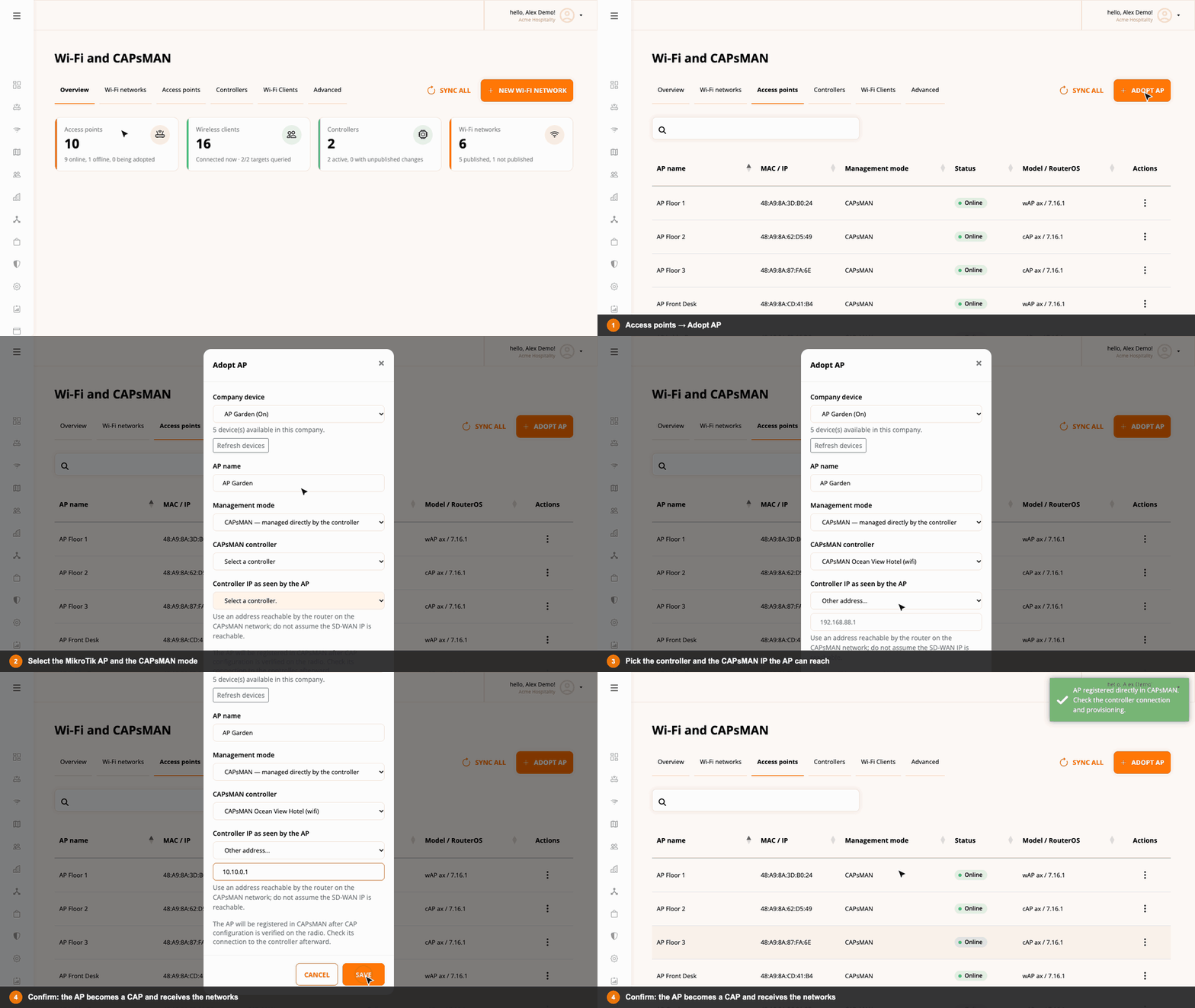
⏳ If the AP is offline, the operation stays pending and resumes automatically when it reconnects. Do not register the AP again.
🔎 AP details #
- The badge Configuration differs from expected means someone changed the AP outside the platform.
- Migrate to standalone / Managed by CAPsMAN switch the mode (Wi-Fi may drop for a moment).
- In standalone mode you can edit the local SSIDs and click Save changes.
- The platform does not change the AP’s bridge, DHCP or wired network.
🗑️ Removing an AP #
| Option | Result |
|---|---|
| Remove from inventory only | The AP leaves the list; its Wi-Fi keeps working as it is. |
| Clean up Wi-Fi and remove | Deletes the Wi-Fi configuration from the AP and removes it. Wireless clients are disconnected. |
🧩 If you encounter any issues, please contact support and include relevant screenshots to help troubleshoot the problem effectively.


