🎨 Create a Guest Wi-Fi Portal #
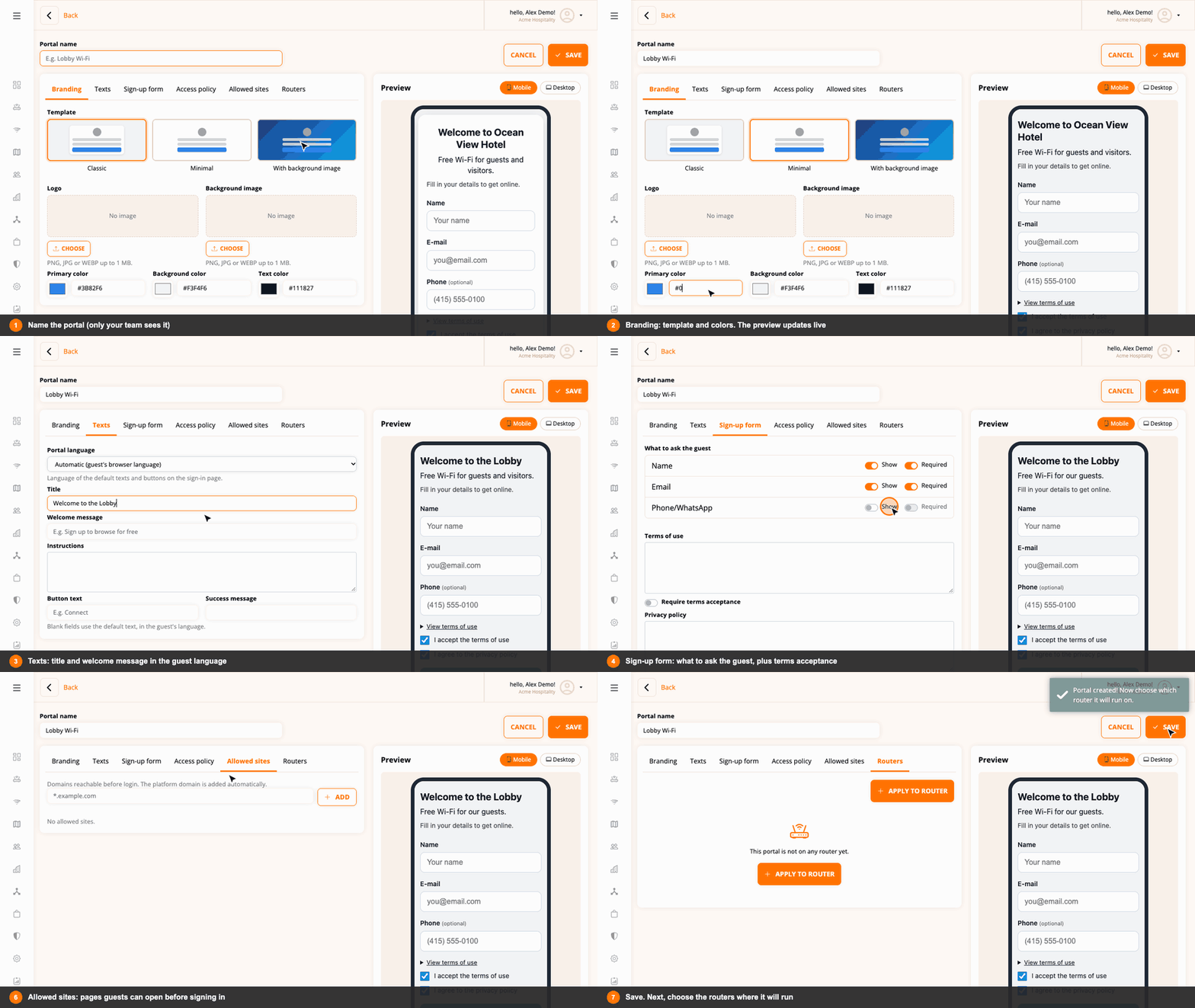
- Go to WiFi → Guest Wi-Fi Portal → Portals and click New portal.
- Enter the Portal name (e.g. Lobby Wi-Fi). It is for your team; guests do not see it.
- Go through the tabs below. The live preview on the right shows the page as guests will see it – switch between Mobile and Desktop.
- Click Save. The message “Portal created! Now choose which router it will run on.” opens the Routers tab.
🖌️ Branding #
- Template: Classic, Minimal or With background image.
- Logo and Background image: PNG, JPG or WEBP, up to 1 MB each.
- Primary color (button and highlights), Background color and Text color.
✍️ Texts #
- Portal language: Automatic (follows the guest’s device), Português, English or Español.
- Title, Welcome message, Instructions, Button text and Success message.
- Fields left blank use the default text in the guest’s language.
📝 Sign-up form #
Choose what to ask the guest: Name, Email and Phone/WhatsApp. Each field has a Show and a Required switch. At least one field must be shown.
Add your Terms of use and Privacy policy and turn on Require terms acceptance / Require privacy policy acceptance. When the guest accepts, the platform records date and time, IP, browser and a fingerprint of the text accepted as proof of consent.
⏱️ Access policy #
| Setting | What it does |
|---|---|
| Session timeout | How long a login lasts before the guest has to sign in again: 30 minutes to 7 days, or No limit (default: 1 day). |
| Idle timeout | Disconnects the guest after this time without traffic: 5, 15 or 30 minutes, 1 hour or Never (default: 30 minutes). |
| Download limit / Upload limit | Speed per guest: a number and the unit (kbps or Mbps), e.g. 10 Mbps. Blank = no limit. |
| Data cap per guest (MB) | Data allowance per login (it resets on every new login). |
| Concurrent devices per guest | From 1 to 10 devices signed in at the same time with the same registration. The oldest one leaves when the limit is passed. |
| Redirect after login | Optional https:// page opened after login (e.g. your website or Instagram). |
| Portal DNS name | Optional name shown in the address bar during login (e.g. wifi.yourhotel.com). |
🌐 Allowed sites #
Sites guests can open before signing in (walled garden) – e.g. your website or a payment page. Add up to 30 domains, like example.com or *.example.com. The platform’s own address is always allowed.
🔄 Editing a published portal #
After changing a portal that is already running, click Save and then Publish changes to routers. Routers running an older version of the portal are shown as Outdated until you publish.


