
Tabela de conteúdos (Índice)
📡 Wi-Fi & CAPsMAN #
Manage the Wi-Fi of every site from one screen: create networks (SSIDs) once and publish them to all access points through MikroTik CAPsMAN, adopt access points, and see every wireless client live.
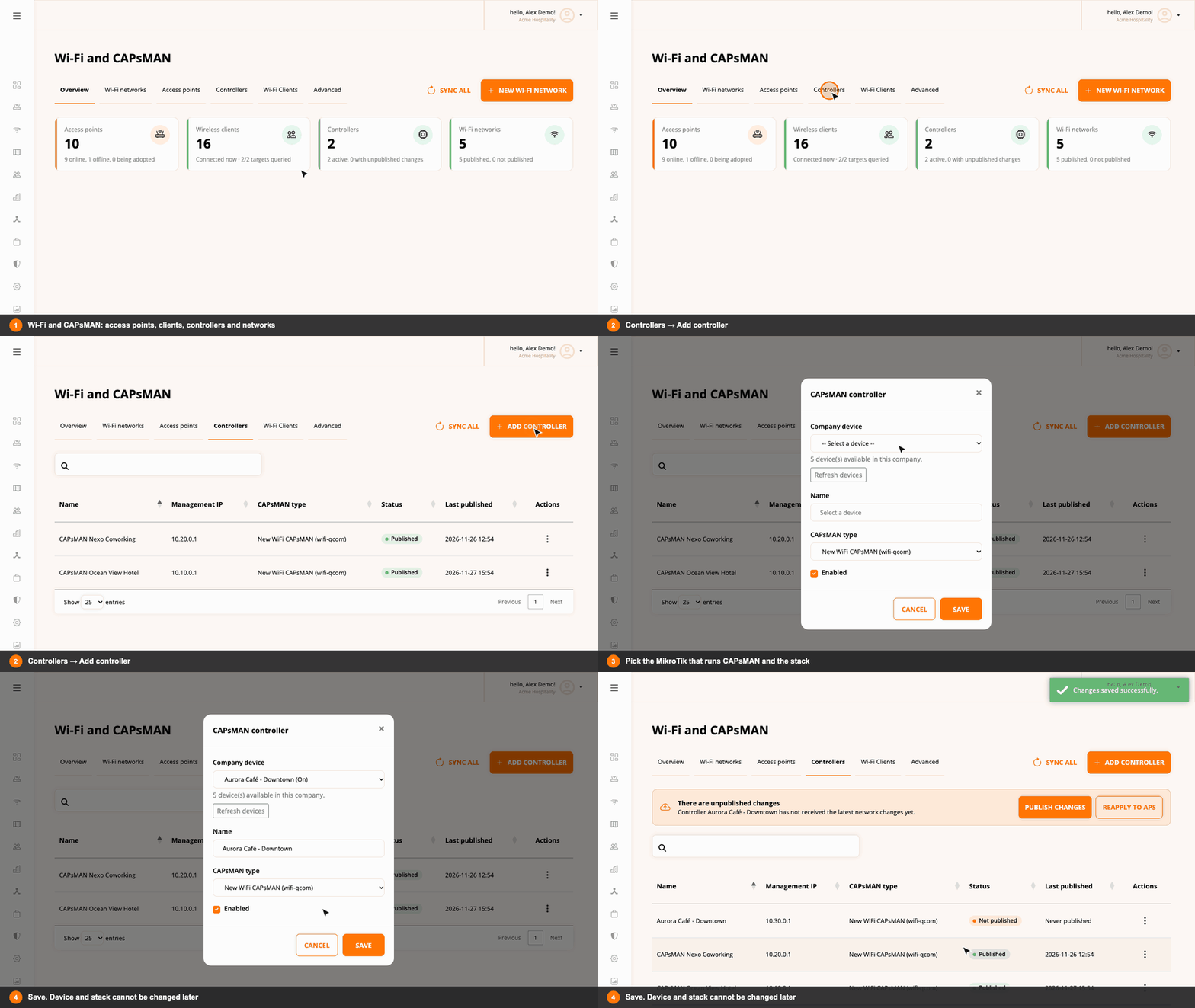
Go to WiFi → Wi-Fi and CAPsMAN. The Overview shows how many access points, wireless clients, controllers and Wi-Fi networks you have; each card opens its tab.
| Tab | Use it to |
|---|---|
| Overview | Summary and the Getting started guide. |
| Wi-Fi networks | Create, edit and publish SSIDs. See Create a Wi-Fi network. |
| Access points | Adopt and manage APs. See Adopt access points. |
| Controllers | The MikroTik devices that run CAPsMAN. |
| Wi-Fi Clients | Who is connected, signal and traffic. See Wi-Fi clients. |
| Advanced | Profiles, provisioning rules, channel and datapath profiles. |
🚀 Getting started #
- Turn on the controller: in Controllers, click Add controller, select the MikroTik that will be the controller and the stack (below). Device and stack cannot be changed later – to change them, create another controller.
- Create a network: New Wi-Fi network.
- Publish: send the rules to the MikroTik.
- Connect APs: Adopt AP for each access point.
🧬 Which stack? #
| New WiFi CAPsMAN (wifi-qcom) | Legacy CAPsMAN (wireless) | |
|---|---|---|
| RouterOS menu | /interface/wifi | /caps-man and /interface/wireless |
| Bands | 2.4, 5 and 6 GHz | 2.4 and 5 GHz |
| Security | WPA2, WPA2/WPA3, WPA3, open | WPA2, open |
| Fast roaming (802.11r) | Yes | No |
| Use when | APs with the new wifi package (wifi-qcom / wifi-qcom-ac) | Older APs with the wireless package |
📢 Controller actions: Inspect, Publish, Reprovision, Edit and Delete. Publishing sends the rules to the controller but does not reprovision radios that are already running – use Reprovision for that (Wi-Fi may drop for a moment).
🔄 Sync all #
Sync all reads the current state of every access point from the routers and refreshes the screen. It does not change any configuration. The page also runs it automatically when an AP shows a problem.
🧩 If you encounter any issues, please contact support and include relevant screenshots to help troubleshoot the problem effectively.


