Tabela de conteúdos (Índice)
📡 Apply the Guest Portal to a Router #
A portal starts working when you apply it to a router. The same portal can run on several routers – a hotel chain can use one design in every unit.
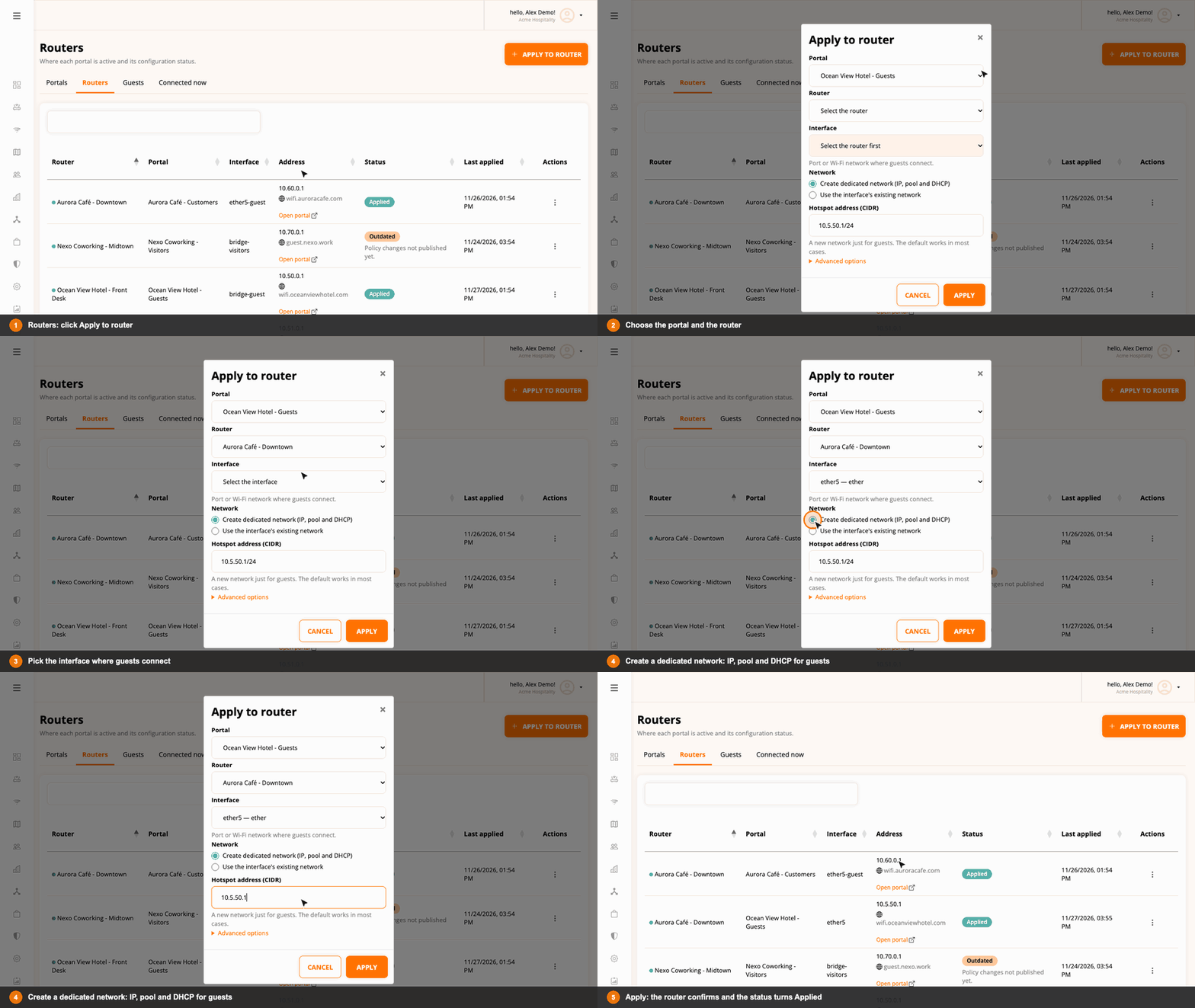
- Open the portal and go to the Routers tab (or Guest Wi-Fi Portal → Routers) and click Apply to router.
- Select the Router.
- Select the Interface: the port, bridge or Wi-Fi network where guests connect.
- Choose the Network:
• Create dedicated network (IP, pool and DHCP) – recommended for a separate guest network. Enter the Hotspot address (CIDR), default10.5.50.1/24(a private range from /16 to /29).
• Use the interface’s existing network – when the interface already has IP and DHCP. - Optionally set a Portal DNS name for this router in Advanced options.
- Click Apply. The message “Configuration sent. Waiting for the router to confirm.” is shown and the status changes to Applied when the MikroTik confirms.
⚠️ Pick the interface carefully: guests on it must sign in before using the internet. If the interface is part of a bridge, the platform suggests applying to the bridge instead. Never apply it to the interface you use to manage the router.
🚦 Status #
| Status | Meaning |
|---|---|
| Pending / Applying | The configuration is being sent to the router. |
| Queued | The router is offline. The configuration will be applied as soon as it reconnects. |
| Applied | The router confirmed the configuration. The portal is live. |
| Outdated | The portal was changed after it was applied. Click Publish changes to routers. |
| Failed | The router reported an error. Open Provisioning history to see it and use Reapply. |
| Removing / Removal pending | The portal is being removed from the router (or will be when it reconnects). |
🛠️ What is configured on the MikroTik #
- With a dedicated network: IP address, IP pool and DHCP server on the interface (see Interfaces, VLANs, Bridges & DHCP).
- Hotspot server and hotspot profile, with the login page of your portal.
- Hotspot user profile with your session, idle and speed limits.
- Walled garden with the platform address and your allowed sites.
🔎 The router must reach the internet to download the portal pages. Keep DNS → Allow Remote Requests enabled on the MikroTik so guests can resolve names; the platform warns you if it is off.
🗑️ Removing #
On the router line, use Remove from router. Connected guests are disconnected and the hotspot created by the platform is removed. A portal can only be deleted after it has been removed from every router.
🧩 If you encounter any issues, please contact support and include relevant screenshots to help troubleshoot the problem effectively.


