
Tabela de conteúdos (Índice)
🖥️ Guest Wi-Fi Portal on the Device Page #
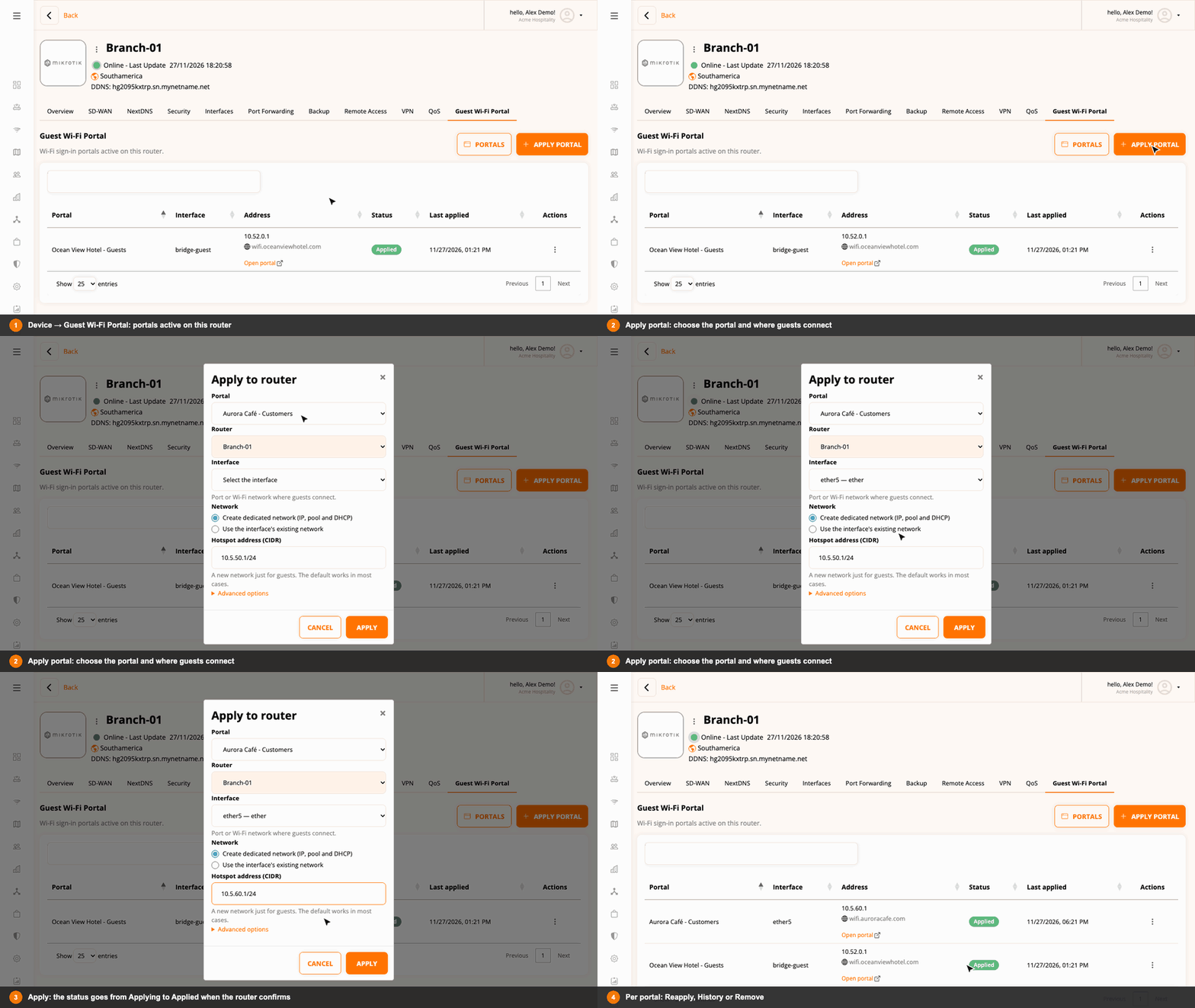
Every router has a Guest Wi-Fi Portal tab on its device page. It lists the portals running on that router – one line per interface – so you can check and change the guest Wi-Fi of a site without leaving the device.
Go to Devices → Configurations → Guest Wi-Fi Portal.
| Column | What it shows |
|---|---|
| Portal | The portal applied to this router. |
| Interface | Where guests connect (port, bridge, VLAN or Wi-Fi network). |
| Address | Hotspot address and the portal DNS name, with a link to open the portal. |
| Status | Pending, Queued (router offline), Applying, Applied, Failed, Outdated, Removing or Removal pending. |
| Last applied | When the router last confirmed the configuration. |
➕ Apply a portal to this router #
- Click Apply portal. The router is already selected.
- Choose the Portal and the Interface.
- Keep Create dedicated network (IP, pool and DHCP) and the suggested Hotspot address, or choose Use the interface’s existing network.
- Click Apply. The status changes to Applied when the router confirms, and the message “Guest Wi-Fi Portal active on …” is shown.
🎛️ Actions #
| Action | What it does |
|---|---|
| Reapply | Sends the configuration again – useful after a failure or after changes made directly on the router. |
| History | Shows every provisioning attempt and the error returned by the router, if any. |
| Remove | Removes the portal from this router (connected guests are disconnected). If the router does not confirm, Remove anyway deletes the record – the configuration may remain on the router. |
💡 This tab shows the same information as Guest Wi-Fi Portal → Routers, filtered by this router. See Apply the Guest Portal to a Router for the details of each option.
🧩 If you encounter any issues, please contact support and include relevant screenshots to help troubleshoot the problem effectively.


